You just set up a new sending domain. You configured SPF, DKIM, and DMARC. You connected your cold email platform. Now you are tempted to import 10,000 leads and hit send. Run a blacklist and DNS check with MXToolbox before the first campaign, not after the first bad week.
Stop.
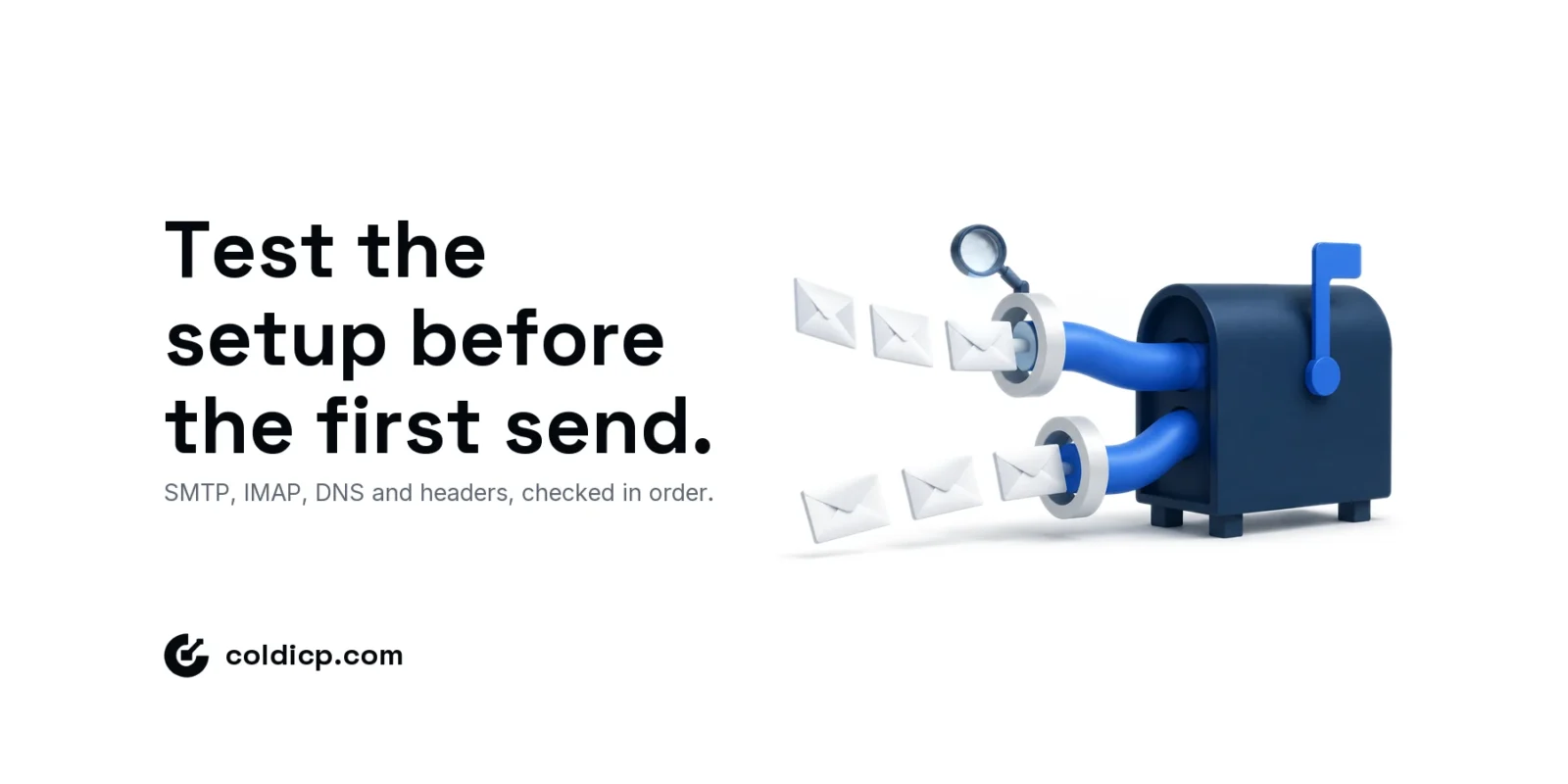
Before you send a single cold email, test your SMTP setup. A single misconfiguration — wrong port, missing authentication, DNS not propagated — can burn your domain on day one. SMTP testing catches these issues before they damage your sender reputation.
This guide shows you exactly how to test your SMTP infrastructure, what to check, and the tools that make it easy.
What SMTP Testing Covers
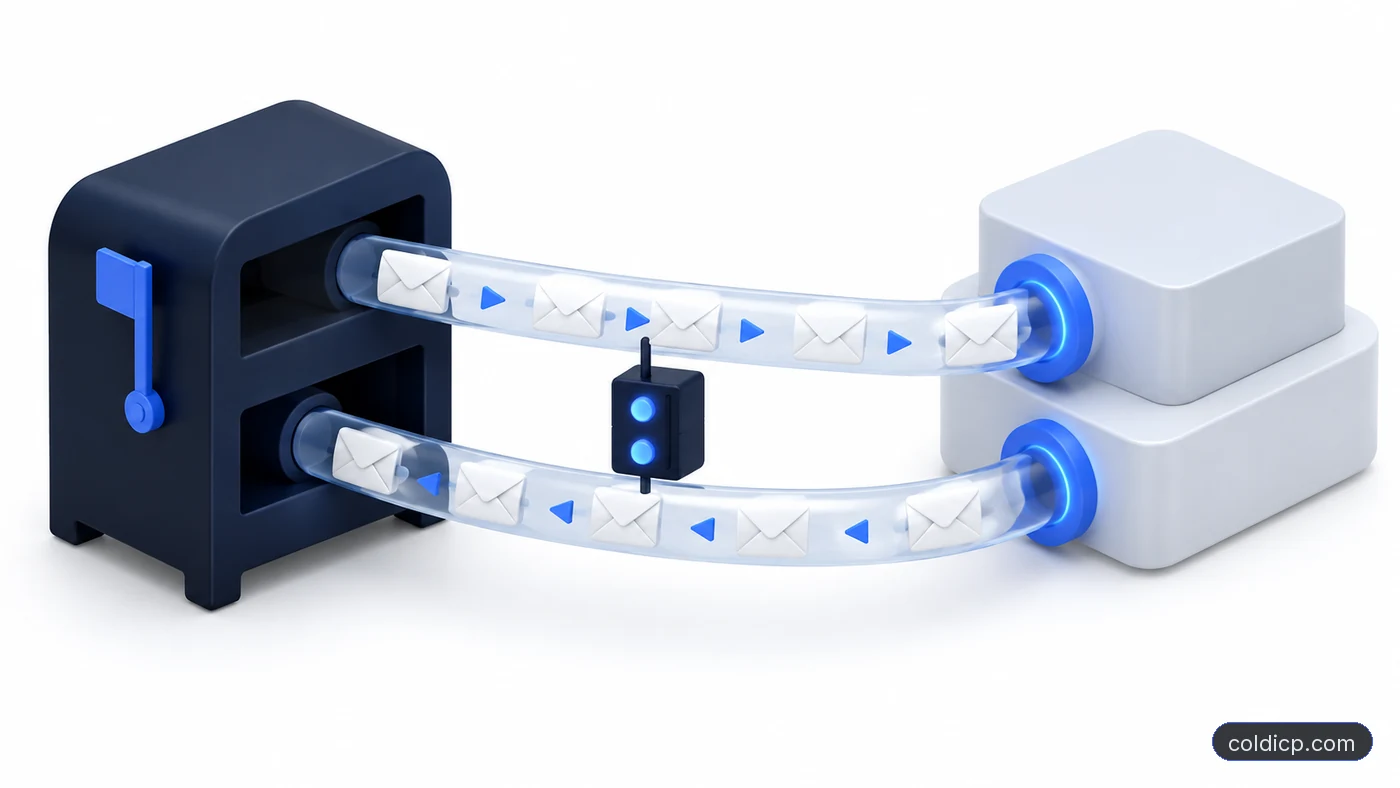
SMTP (Simple Mail Transfer Protocol) is how your emails move from your sending platform to your recipient’s inbox. Testing verifies that authentication works, ports are open, DNS is propagated, routing is correct, and headers are proper.
Skipping testing is like launching a website without checking if the server is running. You might get lucky, or you might crash immediately.
Why Testing Matters for Cold Email
Cold email is unforgiving. ISPs judge your domain from the first send. If your first batch has authentication failures because SPF did not propagate, you start your reputation in the hole. Recovering takes weeks of warmup and careful sending.
Testing prevents this. A 10-minute test session saves months of reputation repair. At COLDICP, we test every new domain before any campaign. We catch issues in roughly 30% of new setups — usually missing DKIM selectors, wrong SMTP ports, or unpropagated DNS.
How to Test Your SMTP Setup
Step 1: Verify DNS Records
Use an online tool or CLI to check that your SPF, DKIM, and DMARC records are live. dig TXT yourdomain.com for SPF and DMARC, dig TXT selector._domainkey.yourdomain.com for DKIM.
If records do not appear, wait. DNS propagation takes 15 minutes to 48 hours. Do not send until they are live.
Step 2: Test SMTP Authentication
Connect to your SMTP server and verify authentication. Connect to your SMTP host and port (usually 587 for TLS, 465 for SSL), send AUTH LOGIN with your credentials, and verify the server accepts them.
If authentication fails, check your credentials. Many platforms use application-specific passwords rather than your login password.
Step 3: Send Test Emails
Send 5-10 test emails to addresses you control across different providers. For each test email, inspect the headers. Look for SPF pass, DKIM pass, and DMARC pass. Failures here mean your configuration is wrong.
Step 4: Run Deliverability Tests
Use tools that simulate spam filters and analyze your email content. These tools catch content issues (spam trigger words, broken HTML) and technical issues (missing authentication, bulk formatting).
SMTP vs IMAP: The Two Connections Your Cold Email Tool Needs
SMTP sends mail and IMAP reads it. A cold email platform needs both for every mailbox you connect. SMTP carries each campaign and warmup send out of the mailbox. IMAP lets the platform read the inbox, which is how it detects replies, stops the sequence for anyone who answered, and runs warmup conversations.
Most teams test only the SMTP side, because that is where campaigns fail visibly. An IMAP fault is quieter and does more damage: sends keep going out, replies are never detected, and prospects who already answered keep receiving follow-ups. Complaints follow quickly.
The table shows what each connection does in a cold email setup and what breaks when it fails.
| Connection | Job in cold email | Usual port | What breaks when it fails |
|---|---|---|---|
| SMTP | Sends campaign and warmup email | 587 (STARTTLS) or 465 (TLS) | Sends fail or stall, and the platform shows authentication or connection errors |
| IMAP | Reads the inbox for replies, bounces and warmup mail | 993 (TLS) | Replies go undetected, sequences keep following up, and warmup stalls |
Test both before launch. Reply to a test campaign from an outside address, then confirm the platform marks the lead as replied and stops the sequence. Two provider settings cause most IMAP failures. Google Workspace admins can turn IMAP off for the whole domain. Microsoft 365 has retired basic authentication for IMAP, so connect those mailboxes with OAuth rather than a password.
Tools for SMTP Testing
| Tool | Purpose | Pricing |
|---|---|---|
| MxToolbox | DNS lookup, SMTP diagnostics | Free |
| Mail Tester | Spam score + content analysis | Free |
| GMass verifier | SPF/DKIM checking | Freemium |
| Putsmail | SMTP test sends | Free |
| Email on Acid | Client rendering + spam testing | From $79/mo |
Common SMTP Issues and Fixes
| Issue | Cause | Fix |
|---|---|---|
| Authentication failed | Wrong username/password | Use app-specific password; verify credentials |
| Connection timeout | Wrong port or firewall | Use 587 for TLS, 465 for SSL; check firewall |
| SPF fail | Missing SPF record | Add SPF record to DNS; wait for propagation |
| DKIM fail | Missing or wrong DKIM selector | Verify selector with sending platform |
| Emails go to spam | Content or reputation | Run content test; check sender reputation |
Testing Checklist
Before every campaign, run through this checklist: SPF record is live and passes, DKIM selector is live and passes, DMARC policy is published (start with p=none), SMTP authentication succeeds, test emails arrive in Gmail inbox (not spam), test emails arrive in Outlook inbox (not junk), headers show SPF pass and DKIM pass, content passes spam filter tests, From address is a real mailbox, and reply-to address is valid.
Further Reading
How to Set Up Sending Domains for Cold Email
SPF, DKIM, and DMARC: The Complete Guide
Email Warmup: How to Warm Up New Domains
The Bottom Line
SMTP testing is cheap insurance. Ten minutes of testing prevents weeks of reputation repair. Before you send to your list, verify that authentication passes, emails arrive in the inbox, and your content passes spam filters.
At COLDICP, testing is mandatory for every new domain and every new sending platform. We catch issues before they burn reputation. That is why our clients see 98%+ inbox placement from day one.
Ready to build an outbound system that generates consistent pipeline? See how COLDICP builds outbound engines for B2B teams.
If you would rather have this built and run for you, book a meeting.
FAQ
How long should I wait for DNS propagation?
Most records propagate within 15-30 minutes. Some ISPs take up to 48 hours. Wait until your records are visible from multiple locations before sending.
Can I test from my cold email platform’s UI?
Many platforms have built-in test sends. Use them, but also verify with external tools. Platform tests do not always catch SPF/DKIM issues.
What if my test emails go to spam?
Check your headers first. If SPF/DKIM pass, the issue is content or sender reputation. Rewrite your copy and warm up your domain before sending to your list.
Do I need to retest if I change my email content?
Yes. Content changes can trigger spam filters. Run a quick content test before sending to your full list.